You may already use ChatGPT, Claude or Copilot. With MCP, that assistant can also work directly with your ISMS in ISOPlanner. No technical knowledge needed: you simply ask a question.
Compliance takes time AI can help
If you're responsible for information security or compliance, for example for ISO 27001, you'll recognise this: before a management review or audit, you often spend more time gathering information than assessing it. You click through risks, controls, tasks and audit findings, and pull everything together by hand.
AI assistants such as ChatGPT, Claude and Microsoft 365 Copilot are great at summarising and thinking along. But they know nothing about your organisation unless you copy and paste data in yourself. That takes time and doesn't always feel safe.
That's where MCP comes in.
What is MCP?
MCP stands for Model Context Protocol. It's an open standard that lets an AI assistant connect securely to other software.
Think of it as a plug that fits everywhere. Every device used to have its own charger; now one USB-C cable works everywhere. MCP does the same for AI: one way to connect your assistant to the systems you already use.
The key difference from ordinary chatting: the assistant doesn't have to guess or wait for you to paste in data. It can look up the right information itself and, if you want, carry out a task for you.
How does MCP work with ISOPlanner™?
MCP connects your AI assistant to your ISMS in ISOPlanner™. ISOPlanner™ remains the central place where your ISMS is managed; the assistant becomes a handy way in.
This is how a question works:
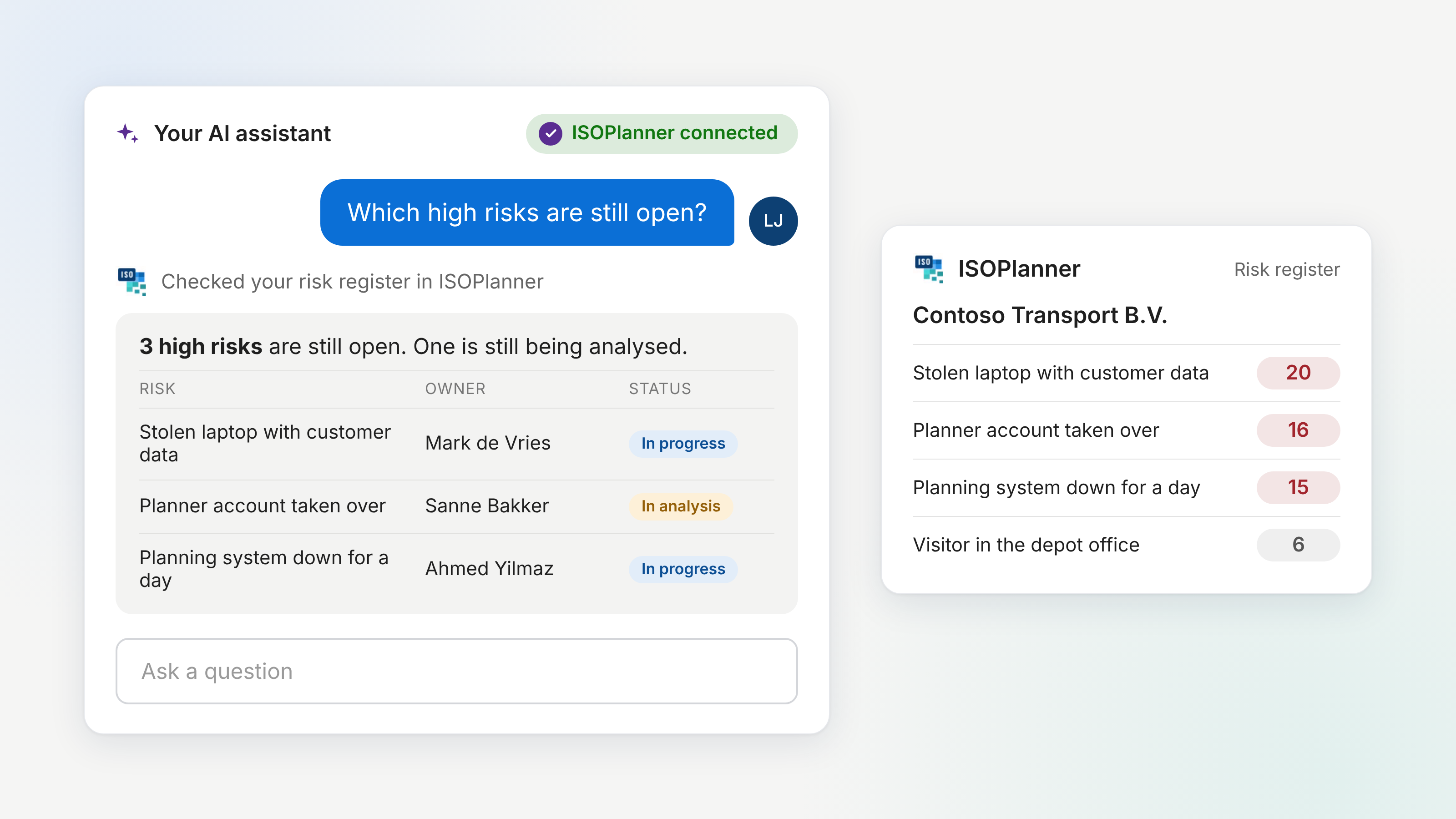
- You ask a question in plain language, for example: “Which high risks are still open?”
- The assistant looks it up in ISOPlanner™ via MCP, in this case in the risk register.
- You get a useful answer, for example three high risks with owner and status, and which ones are still being analysed.
Without MCP you open different parts of your ISMS, gather the data and copy it into your AI assistant yourself.
With MCP you ask your question and the assistant looks up the information directly in ISOPlanner™.
What can you do with it? Four practical examples
1. Preparing a management review Ask: “Which actions are still open and who owns them?” You get an overview of open tasks with owner and deadline, so you can see what still needs to happen before the review.
2. Reviewing audit findings Ask: “What came out of the last internal audit?” The assistant lists the findings for you, so you can decide on next steps faster.
3. Generating a KPI report Ask: “Create a KPI report for the last quarter.” The assistant gathers the measurements and puts them into a report you can share straight away.
4. Submitting a document for approval Ask: “Send the information security policy to the management team for approval.” The assistant prepares a proposal. You review it and click Confirm.
Besides answering questions, the assistant can also do work for you. For example:
- updating risks, controls and requirements, including owners
- creating tasks and events and scheduling them in Outlook
- recording KPI measurements and creating a KPI report
- sending documents for approval and reminding readers
- processing up to 25 items at once in a single request
Some things deliberately stay in the ISOPlanner™ web app, such as carrying out internal audits and inviting users.
You stay in control
AI can help you move forward, but you want to review changes to your ISMS yourself. That's why there are clear boundaries:
- The same permissions as you. The assistant works on your behalf, with your role and permissions. What you can't see or change in ISOPlanner™, the assistant can't either.
- Review first, then your approval. Every change first appears as a proposal. Nothing is saved until you confirm.
- Everything traceable. A change made via the assistant appears in the change history under your name, just like in the web app.
- Secure sign-in. You sign in with your Microsoft account. You don't enter a password anywhere else.
Good to know: information you request via ChatGPT, Claude or Copilot may be processed by that AI provider. That provider's terms and your subscription then apply. Deleting is also permanent; the confirmation card shows in advance what will be removed.
Getting started
MCP is included in every ISOPlanner™ subscription, for every licensed user. All you need is an AI assistant that supports connectors, such as Claude, ChatGPT or Microsoft 365 Copilot. Check with your provider whether your plan includes this; it's often a paid or business plan. Connecting then takes just a few minutes:
- Add ISOPlanner™ in your AI assistant's settings (usually under “connectors” or “integrations”) using the address https://mcp.isoplanner.app/
- Sign in with Microsoft using your ISOPlanner™ account.
- Ask your first question, for example: “Which of my tasks are still open this month?”
Using Microsoft 365 Copilot? Then your Microsoft 365 administrator adds ISOPlanner once for the whole organisation.
Curious what it looks like in practice? On our MCP page you can click through three practical examples yourself. In a few minutes you'll see how a question to your AI assistant turns into a useful answer from your ISMS, without installing anything.